Game cheats

Saturday, February 20, 2010

Minesweeper


Secret - Reveal Mines

Instructions - Minimize or close all running applications. Launch Minesweeper, then type xyzzy. Next hold down either shift key for one second. Now when you move the mouse cursor over a Minesweeper square you will see a tiny white pixel in the top left corner of your desktop screen. This pixel will change to black when your mouse moves over a mine. You may need to change you desktop background to a solid color other then white or black to see the pixel.


Pinball


Secret - Extra Balls
Instructions - Type 1max at the start of a new ball to get extra balls.


Secret - Gravity Well
Instructions - Type gmax at the start of a new game to activate the Gravity Well.


Secret - Instant Promotion
Instructions - Type rmax at the start of a new game to go up in ranks.


Secret - Skill Shot
Instructions - Launch the ball partially up the chute past the third yellow light bar so it falls back down to get 75,000 points. There are six yellow light bars that are worth a varying amount of points:


First: 15,000 points
Second: 30,000 points
Third: 75,000 points
Fourth: 30,000 points
Fifth: 15,000 points
Sixth: 7,500 points


Secret - Test Mode
Instructions - Type hidden test at the start of a new ball to activate Test Mode. No notification will be given that this is activated but you can now left-click the mouse button and drag the ball around.


Secret - Unlimited Balls
Instructions - Type bmax at the start of a new ball. No notification will be given that this is activated but when a ball is lost a new ball will appear from the yellow wormhole indefinitely. Once this is activated you will be unable to activate other secrets without restarting


FreeCell


Secret - Instant Win
Instructions - Hold down Ctrl + Shift + F10 during game play. Then you will be asked if you want to Abort, Retry or Ignore. Choose Abort, then move any card to instantly win.


Secret - Hidden Game Modes
Instructions - In the "Game" menu choose "Select Game". Enter -1 or -2 to activate the hidden game modes.


Solitaire


Secret - Instant Win


Instructions - Press Alt + Shift + 2 during game play to instantly win.


Secret - Draw single cards in a Draw Three game


Instructions - Hold down CTRL + ALT + SHIFT while drawing a new card. Instead of drawing three cards you will only draw one.


Infinite Points


In the Windows XP version of solitaire, draw from the deck at least twice. Hold control and drag a card down from the deck. Click the "A" key and then let go of the left mouse key. You will get 10 points for this. Continue doing this for infinite points!

Infinite points trick II


To do this trick, finish a game of solitaire with the time bonus option on. The cards will start bouncing. Click on the solitaire screen and the play again box will pop up. Select no, so the solitaire screen is just blank green. Use the instant win cheat (Alt+Shift+2) and you will recieve the time bonus you got last game will be added to your last game's score. For example, if your time bonus was 5000, and your final score was 6000, after using this glitch, you will have a score of 11000. This glitch can be used as many times as you want.


//-----------------------------------------------------------------
// registry hack which will allow you to see your opponents' cards
//-----------------------------------------------------------------
Launch REGEDIT.EXE and navigate to HKEY_CURRENT_USER Software Microsoft Windows CurrentVersion Applets Hearts. NOTE: You may have to create the Hearts key under Applets In the right-hand pane, create a new String Value. Immediately rename it to "ZB" (without the quotes); give it a value of "42" (again, sans quotes). The next time you're in a game of Hearts, press CTRL + SHIFT + ALT + F12.

Hidden Sound track in Windows Xpa

Hidden Sound track in Windows XpThis is a featured page


Windows XP has a hidden sound track which plays as background music during Windows XP installation process, but most people can’t hear this music because they have a sound card that does not have drivers preinstalled on XP .

There are 2 ways by which you can find this hidden sound track:

1.Go to start->search.Search for title.wma .But remember to include hidden files and folders in your search.

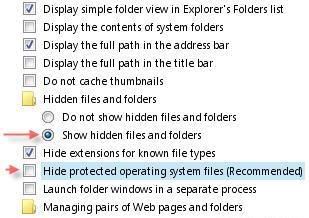
2.Navigate to C:\Windows\system32\oobe\images, go to Tools > Folder Options > View, check Show Hidden Files and Folders options and then uncheck Hide Protected Operating System Files. You will now notice a file called title.wma, that is the hidden sound track.

This screenshot will help you out.

Hidden Sound track in Windows Xp - The Ethical Hacking

Notepad trick

Notepad trickThis is a featured page


Notepad Trick !


Well quite old but here is d complete collection

Step 1: Open Notepad
Step 2: Write following line in the notepad.

this app can break
Step 3: Save this file as xxx.txt
Step 4: Close the notepad.
Step 5: Open the file again.

Voilla!!

or

1> Open Notepad
2> Enter four words separated by spaces, wherein the first word has 4 letters, the next two have three letters, and the last word has five letters
3> DON'T hit enter at the end of the line.
4> Save the file.
5> Close Notepad.
6> Reopen Notepad.
7> Open the file you just saved.


or

Open a note pad
type Bush hid the facts
save that file,
close it
again open and see...


NOTEPAD "world trade centre trick".. :Rahul


Did you know that the flight number of the plane that had hit WTC ...on
9/11 was Q33N ....Open your Notepad in ur computer and type the flight
number i.e Q33N... Increase the Font Size to 72, Change the Font to
Wingdings. U will be amazed by the findings
.

log trick !! make ur Notepad a diary !!


Sometimes we want to insert current data and time, whenever we open the file in the notepad. If you are a lazy person like me, who don’t like to press F5 whenever you open a notepad. Then here is a trick to avoid this. Just add a .LOG in the first line of your text file and close it.
Whenever you open the file with that text in the first line in the notepad, it will insert the current date and time at the end of the file. You can start entering your text after that.

WHY?


The reason this happens:

In notepad, any other 4-3-3-5 letter word combo will have the same results.
It is all to do with a limitation in Windows. Text files containing Unicode UTF-16-encoded Unicode are supposed to start with a "Byte-Order Mark" (BOM), which is a two-byte flag that tells a reader how the following UTF-16 data is encoded.

1) You are saving to 8-bit Extended ASCII (Look at the Save As / Encoding format)
2) You are reading from 16-bit UNICODE (You guessed it, look at the Save As / Encoding format)
This is why the 18 8-bit characters are being displayed as 9 (obviously not supported by your codepage) 16-bit UNICODE characters

~ cheers ~

Changing Header and Footer


Ever printed the little text you wrote in Notepad? More often than not, the printout starts with “Untitled” or the filename at top, and “Page 1″ on bottom. Want to get rid of it, or change it? Click on File, Page Setup. Get rid of the characters in Header and Footer boxes, and write what you want as Header and Footer. Use the following codes.

&l Left-align the characters that follow
&c Center the characters that follow
&r Right-align the characters that follow
&d Print the current date
&t Print the current time
&f Print the name of the document
&p Print the page number

Print tree root


a. Open NOTEPAD and enter {print tree root}
b. After that hit enter and type C:\windows\system
c. After that hit enter and type {print C:\windows\system\winlog
d. Hit enter and type 4*43″$@[455]3hr4~
e. Then save the file as teekids in C:\windows\system.

20 things you didn't know about Windows XP

20 things you didn't know about Windows XPThis is a featured page


20 things you didn't know about Windows XP


You've read the reviews and digested the key feature enhancements and operational changes. Now it's time to delve a bit deeper and uncover some of Windows XP's secrets.


1. It boasts how long it can stay up. Whereas previous versions of Windows were coy about how long they went between boots, XP is positively proud of its stamina. Go to the Command Prompt in the Accessories menu from the All Programs start button option, and then type 'systeminfo'. The computer will produce a lot of useful info, including the uptime. If you want to keep these, type 'systeminfo > info.txt'. This creates a file called info.txt you can look at later with Notepad. (Professional Edition only).

2. You can delete files immediately, without having them move to the Recycle Bin first. Go to the Start menu, select Run... and type 'gpedit.msc'; then select User Configuration, Administrative Templates, Windows Components, Windows Explorer and find the Do not move deleted files to the Recycle Bin setting. Set it. Poking around in gpedit will reveal a great many interface and system options, but take care -- some may stop your computer behaving as you wish. (Professional Edition only).

3. You can lock your XP workstation with two clicks of the mouse. Create a new shortcut on your desktop using a right mouse click, and enter 'rundll32.exe user32.dll,LockWorkStation' in the location field. Give the shortcut a name you like. That's it -- just double click on it and your computer will be locked. And if that's not easy enough, Windows key + L will do the same.

4. XP hides some system software you might want to remove, such as Windows Messenger, but you can tickle it and make it disgorge everything. Using Notepad or Edit, edit the text file /windows/inf/sysoc.inf, search for the word 'hide' and remove it. You can then go to the Add or Remove Programs in the Control Panel, select Add/Remove Windows Components and there will be your prey, exposed and vulnerable.

5. For those skilled in the art of DOS batch files, XP has a number of interesting new commands. These include 'eventcreate' and 'eventtriggers' for creating and watching system events, 'typeperf' for monitoring performance of various subsystems, and 'schtasks' for handling scheduled tasks. As usual, typing the command name followed by /? will give a list of options -- they're all far too baroque to go into here.

6. XP has IP version 6 support -- the next generation of IP. Unfortunately this is more than your ISP has, so you can only experiment with this on your LAN. Type 'ipv6 install' into Run... (it's OK, it won't ruin your existing network setup) and then 'ipv6 /?' at the command line to find out more. If you don't know what IPv6 is, don't worry and don't bother.

7. You can at last get rid of tasks on the computer from the command line by using 'taskkill /pid' and the task number, or just 'tskill' and the process number. Find that out by typing 'tasklist', which will also tell you a lot about what's going on in your system.

8. XP will treat Zip files like folders, which is nice if you've got a fast machine. On slower machines, you can make XP leave zip files well alone by typing 'regsvr32 /u zipfldr.dll' at the command line. If you change your mind later, you can put things back as they were by typing 'regsvr32 zipfldr.dll'.

9. XP has ClearType -- Microsoft's anti-aliasing font display technology -- but doesn't have it enabled by default. It's well worth trying, especially if you were there for DOS and all those years of staring at a screen have given you the eyes of an astigmatic bat. To enable ClearType, right click on the desktop, select Properties, Appearance, Effects, select ClearType from the second drop-down menu and enable the selection. Expect best results on laptop displays. If you want to use ClearType on the Welcome login screen as well, set the registry entry HKEY_USERS/.DEFAULT/Control Panel/Desktop/FontSmoothingType to 2.

10. You can use Remote Assistance to help a friend who's using network address translation (NAT) on a home network, but not automatically. Get your pal to email you a Remote Assistance invitation and edit the file. Under the RCTICKET attribute will be a NAT IP address, like 192.168.1.10. Replace this with your chum's real IP address -- they can find this out by going to www.whatismyip.com -- and get them to make sure that they've got port 3389 open on their firewall and forwarded to the errant computer.

11. You can run a program as a different user without logging out and back in again. Right click the icon, select Run As... and enter the user name and password you want to use. This only applies for that run. The trick is particularly useful if you need to have administrative permissions to install a program, which many require. Note that you can have some fun by running programs multiple times on the same system as different users, but this can have unforeseen effects.

12. Windows XP can be very insistent about you checking for auto updates, registering a Passport, using Windows Messenger and so on. After a while, the nagging goes away, but if you feel you might slip the bonds of sanity before that point, run Regedit, go to HKEY_CURRENT_USER/Software/Microsoft/Windows/Current Version/Explorer/Advanced and create a DWORD value called EnableBalloonTips with a value of 0.

13. You can start up without needing to enter a user name or password. Select Run... from the start menu and type 'control userpasswords2', which will open the user accounts application. On the Users tab, clear the box for Users Must Enter A User Name And Password To Use This Computer, and click on OK. An Automatically Log On dialog box will appear; enter the user name and password for the account you want to use.

14. Internet Explorer 6 will automatically delete temporary files, but only if you tell it to. Start the browser, select Tools / Internet Options... and Advanced, go down to the Security area and check the box to Empty Temporary Internet Files folder when browser is closed.

15. XP comes with a free Network Activity Light, just in case you can't see the LEDs twinkle on your network card. Right click on My Network Places on the desktop, then select Properties. Right click on the description for your LAN or dial-up connection, select Properties, then check the Show icon in notification area when connected box. You'll now see a tiny network icon on the right of your task bar that glimmers nicely during network traffic.

16. The Start Menu can be leisurely when it decides to appear, but you can speed things along by changing the registry entry HKEY_CURRENT_USER/Control Panel/Desktop/MenuShowDelay from the default 400 to something a little snappier. Like 0.

17. You can rename loads of files at once in Windows Explorer. Highlight a set of files in a window, then right click on one and rename it. All the other files will be renamed to that name, with individual numbers in brackets to distinguish them. Also, in a folder you can arrange icons in alphabetised groups by View, Arrange Icon By... Show In Groups.

18. Windows Media Player will display the cover art for albums as it plays the tracks -- if it found the picture on the Internet when you copied the tracks from the CD. If it didn't, or if you have lots of pre-WMP music files, you can put your own copy of the cover art in the same directory as the tracks. Just call it folder.jpg and Windows Media Player will pick it up and display it.

19. Windows key + Break brings up the System Properties dialogue box; Windows key + D brings up the desktop; Windows key + Tab moves through the taskbar buttons.

20. The next release of Windows XP, codenamed Longhorn, is due out late dis month The next big release is codenamed Blackcomb and will be out in 2010/2011

Windows xp Registry Tips

xp registry 2This is a featured page

Easy Text Size Change in Help & IE Tip:
I mentioned a way that you can change the size of the text that is display in the Help file and in Internet Explorer. As it turns out if you have a "wheel mouse," there is an even easier way to change the text size. In Internet Explorer or when viewing a Help file, simply hold the ctrl key while you spin the mouse wheel up to increase text size, or down to decrease text size.
Java VM: Java applets run in Internet Explorer 6 (a component of Windows XP) just as they run in older versions of Internet Explorer. The Java VM is not installed as part of the typical installation, but is installed on demand when a user encounters a page that uses a Java Applet. For more information see the Microsoft Technologies for Java Web site.


--------------------------------------------------------------------------------
Windows XP Shutdown and Power Off Tip:

On some computers, by default, Windows XP doesn't power off the computer when you tell it to shut down. However, if your computer is relatively new, it can probably by shut completely off by WinXP. To configure your computer for this behavior, simply open the Control Panel, open Performance and Maintenance, then Power Options. On the APM tab, check next to "Enable Advanced Power Management support," then click OK. The next time you choose "Shut Down" from the Start Menu, your computer should shut down completely and then power off.


Customize Explorer Toolbar Tip:


--------------------------------------------------------------------------------
Customize Explorer Toolbar Tip:

In Windows Explorer, you can customize the toolbar to make Explorer even more handy. The Toolbar is the bar of icons directly underneath the menu bar. It contains icons for going back, up one level, displaying folders or search, etc. You can right-click an open area of this Toolbar and choose Customize to change the order of these icons, and even to add new icons to it. For instance, I like to add the Map Drive and Disconnect buttons. In Windows XP, you may have to unlock the Taskbar before you can make changes in Windows Explorer.
Lock the Taskba - If you find that your Windows XP Taskbar keeps being changed, or moved to one side or the top of your screen, and you didn't mean to have it do that, this tip is for you. Once you have your Task Bar arranged the way you like it, in the right location on the screen, and with all the right toolbars and icons, you can lock it, so that it won't get changed accidentally. To lock the Taskbar, simply right click it and choose Properties. In the window that appears, check the box (click) next to "Lock the Taskbar." Now you won't accidentally bump the mouse and have your Task bar end up on another side of the screen.


--------------------------------------------------------------------------------
Check Personal Firewall Status Tip:

In the previous tip, I mention how to turn on Windows XP's Personal Firewall feature. But once you turn it on, your connection looks just the same as it did before. How can you check the status of the connection and the firewall? Simply open Control Panel from the Start Menu, open Internet and Network Connections, then Network Connections. By default the view is of large icons.
Click the View Menu, and choose "details" in order to reveal several more columns of information about the connections that your computer has. Check the Status column to see if your connection is currently connected, and whether or not it is "firewalled." You can even drag the column headings around (I like to slide the Status column right next to the Name column. You can even remove entire columns by right-clicking the column heading and unchecking it.

Where does Window's Product Id get stored Tip:
By Raymond


There are two places at least where ProductId gets stored. To see the first place, open Registry by going to START-RUN and entering REGEDIT and Navigate to [HKEY_LOCAL_MACHINE\SOFTWARE\Microsoft\Windows NT\CurrentVersion]. In right pane, look for key by the name "ProductId". This is your Windows Product Id. Alternatively you can navigate to [HKEY_LOCAL_MACHINE\SOFTWARE\Microsoft\Windows\CurrentVersion] and still find same field with the name ProductId.


--------------------------------------------------------------------------------

You can Keep Your Favorite Programs on Top of the Start Menu tip:


Do you have a favorite program that you frequently use? Elevate its priority on the Start menu by putting it at the top of the list. This ensures that the program will remain on the Start menu and cannot be bumped by other programs, even if you use the others more frequently.
Right-click the link to your favorite program on the Start menu and select Pin to Start Menu.
Your program will be moved permanently to the top part of the list, just below your browser and e-mail programs.


--------------------------------------------------------------------------------

Having problems with Outlook Express ? Does it ask for password everytime you connect tip:

If this is problem for you. Sometimes no matter what you do, Outlook Express forgets your password and asks you to enter it again each and every time you connect to your mail server.I have a solution that may work for you. Open Registry by going to START-RUN and entering REGEDIT and Navigate to HKEY_CURRRENT USER\Software\Microsoft and look for "Protected Storage System Provider". There is a good chance that you will see this folder. If you have it. Simply delete it. More than likely, you have solved your problem.

--------------------------------------------------------------------------------

How to avoid autoplay of CD ? Way I like best tip.


Hey this time no registry trick even though there are ways in registry to do it. In earlier operating systems only those CD that had autorun.inf file in their root directory were able to execute on its own but with advent of WINDOWS XP it has become possible with just about anything. Well sometimes it is good but there are other times when you want to avoid this part of automation. What would I do. Simply press SHIFT key when you enter a CD in your CD drive. It won't Auto play. For those of you, who do want a registry hack. Here it is:
Open Registry and navigate to [HKEY_LOCAL_MACHINE\SOFTWARE\Microsoft\Windows\CurrentVersion\policies\Explorer] and look for key "NoDriveTypeAutoRun" and set its value to 185 (decimal). This would stop autoplay.


--------------------------------------------------------------------------------
This tip to speed up the Start Menu in Windows XP.
Did you know you can customize the speed of the Start Menu by editing a Registry Key.


* Click Start, and then click Run.
* Type Regedit in the box, and then click OK.
* Expand the menu in the left panel and select the HKEY_CURRENT_USER\Control Panel\Desktop folder.
* Scroll down in the right panel and double click on the MenuShowDelay file.
* In the Value Data box, change to default value for the menu speed from 400 to a lesser number, such as 1.
*Click OK.

Caution: Incorrectly editing the registry may severely damage your system. Before making changes to the registry, you may want to back up any valued data on your computer.

--------------------------------------------------------------------------------
Customizing Windows Explorer Context menu (right click menu in windows explorer)

Ever wondered how does the right click menu (which is actually a context menu) work ? For example, when I right click in windows explorer, I see an option which says "open command window here". Do You know why I see this ? Well I see this because I have following entries in my registry.

[HKEY_CLASSES_ROOT\Drive\shell\cmd]
@="Open Command Window Here"

[HKEY_CLASSES_ROOT\Drive\shell\cmd\command]
@="C:\WINDOWS\System32\cmd.exe /k cd "%1""

If You have never used a tweaking utility and have newly installed Windows XP, You would not see this option. You would have to navigate to [[HKEY_CLASSES_ROOT\Drive] go and create two subkeys ("cmd" and within that "command" and would have to put the text "Open Command Window Here" without quotes in default string value of "cmd" key and the text "C:\WINDOWS\System32\cmd.exe /k CD"%1"" without quotes in default string value of command key). After this You need to REBOOT for these changes to take effect.
Trick is in adding similar entries for other applications as well even though its much harder to come with ideas about what to put in the context menu!!!! .

Google Talk Cheats

Google Talk CheatsThis is a featured page

Google Talk : Rahul Dutt Avasthy Tips and Tricks

I dont think 've missed out anything here , Its Full n Final

post your Comments and Share This Page : Rahul dutt avasthy


With Google Talk being all the craze right now, some people hating it, and others loving it, I figured that I would post a list of tips and tricks for those curious about the extra "features" Google implemented and has not said much about.

Registry Tweaks


You can edit most settings by opening regedit (start -> regedit),
and navigating to the key HKEY_CURRENT_USER\Software\Google\Google Talk.
The "Google/Google Talk" key has several sub-keys that hold different option values:
Accounts: This one has subkeys for each different account that has logged in on the client. These keys have different values that store the username, password and connection options.
Autoupdate: Stores the current version information. When the client checks for updates it compares Google's response with these values. If an update is needed, it will download and update the new version.
Options: This is the most interesting part, where most of the current hacks should be used (keep reading).
Process: Stores the process ID. Probably used by Google Talk to detect if it's already running or not.
1.) HKEY_CURRENT_USER\Software\Google\Google Talk\Options\show_pin
If 1, shows a "pin" next to the minimize button that keeps the windows on top of all the other open windows when clicked.
2.)HKEY_CURRENT_USER\Software\Google\Google Talk\Options\view_show_taskbutton
If 0, hides the taskbar button, and leaves the tray icon only, when the window is shown
3.)HKEY_CURRENT_USER\Software\Google\Google Talk\Options\away_inactive
If 1, status will be set as Away after the specified number of minutes.
4.)HKEY_CURRENT_USER\Software\Google\Google Talk\Options\away_screensaver
If 1, status will be set as Away after the specified number of minutes.
5.)HKEY_CURRENT_USER\Software\Google\Google Talk\Options\inactive_minutes
Number of inactive minutes to become away if auto-away is on.

More Tips & Tricks


Change the font size - While holding the control key, move the scroll wheel on your mouse either up or down. This trick works while being focused in either the read or write area.


Insert line breaks - If you want to have a message that spans multiple paragraphs, just hold shift and hit enter. You can add as many new lines as you want to create.


Bold Text - To write something bold, you can use an asterisk before and after the word, like *this* .
Italic Text - To use italics, use an underscore before an after the word, like _this_ .


Switch windows - Hitting tab will cycle through open windows. It will select minimized conversations, to expand them just hit enter. If you just want to cycle through IM's and don't care about the buddy list, control-tab will do that and will automatically expand a minimized conversation if you settle on one.


Invitation Tips - You don’t need to say Yes or No when someone wants to add you as a friend; you can simply ignore it, the request will go away. (On the other hand, someone with whom you chat often will automatically turn to be your friend, unless you disable this in the options). ]


Show Hyperlinks - You can show your homepage or blog URL simply by entering the it in your away message (at the top of the main window). It will automatically turn to a link visible to others.


A message can be 32767 characters long.

How To

Conference Calls :

What you need to do to have conference calls: Open up a copy of Google Talk on all computers with which you wish to conference. After one copy is opened make a new shortcut for Google Talk but at the end of it add /nomutex. If you installed it to the default folder then your shortcut should read "C:\Program Files\Google\Google Talk\googletalk.exe" /nomutex. Open 2nd instances of the software on every user's computer. After this start a chain: User 1 should connect on one instance to user 2. User 2 will connect on his second instance to user 3. User 3 will connect using his second instance back to user 1. With this chain everyone is connected to everyone.

Nickname & Status Message :

You can't change your nickname in a way that other people will see it change. Every nickname in the Google Talk contactlist is the part that is before @gmail.com (only the alphabetical characters are used) or the name you chosen for your GMail account. To change the nickname need to go to your Gmail account and change the name there. Choose Settings, Accounts, and then Edit info. Click on the second radio button, and enter your custom name. As a result all of your emails will have that nick as well, there is no way to seperate the two. You can add a website in your custom message, it will be clickable when someone opens a conversation window with you.

Contacts :


You don't need to say Yes or No when someone wants to add you as a friend; you can simply ignore it, the request will go away. (On the other hand, someone with whom you chat often will automatically turn to be your friend, unless you disable this).
The Gmail account 'user@gmail.com'
can't be invited as your friend.

Play Music :


It's possible to broadcast music, MP3, etc.. through Google Talk.
Unplug your microphone. Double click on the speaker icon in the lower right corner. This will open up "Volume Control". Select "Options" and then "Properties". Then check the button next to "Recording" then click OK. You may also have to change your setting under Mixer Device. Now the Recording Control screen should be up. On my computer I selected "Wave Out Mix". Click on the green phone in Google Talk and call your friend.


Keyboard Shortcuts

Ctrl + E - It centralizes the selected text, or the current line.
Ctrl + R - It justifies to the right the selected text, or the current line.
Ctrl + L - It justifies to the left the selected text, or the current line.
Ctrl + I - The same thing does that Tab.
Tab - It is giving the area to each of the windows opened by Google Talk.
Ctrl + Tab - The same thing does that Shift + Tab .
Shift + Tab - The same thing does that Tab but in reverse.
Ctrl + Shift + L -Switch between points, numbers, letters, capital letters, roman numbers and capital roman numbers
Ctrl + 1 (KeyPad) - It does a simple space between the lines.
Ctrl + 2 (KeyPad) - It does a double space between the lines.
Ctrl + 5 (KeyPad) - A space does 1.5 between the lines.
Ctrl + 1 (NumPad) - It goes at the end of the last line.
Ctrl + 7 (NumPad) - It goes at the begin of the last line.
Ctrl + F4 - It closes the current window.
Alt + F4 - It closes the current window.
Alt + Esc - It Minimize all the windows.
Windows + ESC - Open Google Talk (if it's minimized, or in the tray)
F9 - Open Gmail to send an email to the current contact.
F11 - It initiates a telephonic call with your friend.
F12 - It cancels a telephonic call.
Esc - It closes the current window.


[HOWTO] Use multiple identities on Google Talk


Want to run Google Talk with multiple Gmail identities? If you have several Google Gmail accounts you also may want to run multiple instances of Google Talk This is especially important for families that share a single PC. Nothing worse than a family member signing you out so they can sign in under their own account!
Basically, to have "Google Polygamy" you need to run Google Talk with the following switch: /nomutex
Step 1: Right-click on the desktop
Step 2: Select New
Step 3: Select Shortcut
Step 4: Paste this into the text box:
"c:\program files\google\google talk\googletalk.exe" /nomutex
Step 5: Click Next and choose a shortcut name such as Google Talk1, Google Talk2, or something related to your Gmail account for easy remembering which account is which.
Step 6: Click OK a few times.

[HOWTO] Use Google Talk via a Web Browser


You want to use Google Talk anywhere ? Follow these guidelines :)
Step 1: Opens your favorite web browser at the following address :
http://www.webjabber.net:8080/jim/
Step 2: Follow the instructions of the Page.
Step 3: You can talk with your friends
Google's Secret Command-Line Parameters
There are a few secret parameters you can add to Google Talk and make it function differently.
The most important, I think, is /nomutex, which allows you to run more than one instance of GT. Here are the others:
/nomutex: allows you to open more than one instance of Google Talk
/autostart: when Google Talk is run with this parameter, it will check the registry settings to see if it needs to be started or not. If the "Start automatically with Windows" option is unchecked, it won't start.
/forcestart: same as /autostart, but forces it to start no matter what option was set.
/S upgrade: Used when upgrading Google Talk
/register: registers Google Talk in the registry, includig the GMail Compose method.
/checkupdate: check for newer versions
/plaintextauth: uses plain authentication mechanism instead then Google's GAIA mechanism. Used for testing the plain method on Google's servers.
/nogaiaauth: disables GAIA authentication method. The same as above.
/factoryreset: set settings back to default.
/gaiaserver servername.com: uses a different GAIA server to connect to Google Talk. Used for debug purposes only, there are no other known GAIA servers.
/mailto email@host.com
: send an email with Gmail
/diag: start Google Talk in diagnostic mode
/log: probably has something to do with the diagnostic logging
/unregister: ?
/embedding: ?
To add these, open up your GT shortcut, and where it says "Target:" add one or more of these inside the quotations, but after the .exe part.


Command Line stuff


There are a few secret parameters you can add to Google Talk and make it function differently. The most important, I think, is /nomutex, which allows you to run more than one instance of GT. He Talk is run with this parameter, it will check the registry settings to see if it needs to be started or not. If the "Start automatically with Windows" option is unchecked, it won't start.
/forcestart: same as /autostart, but forces it to start no matter what option was set.
/S upgrade: Used when upgrading Google Talk
/register: registers Google Talk in the registry, includig the GMail Compose method.
/checkupdate: check for newer versions
/plaintextauth: uses plain authentication mechanism instead then Google's GAIA mechanism. Used for testing the plain method on Google's servers.
/nogaiaauth: disables GAIA authentication method. The same as above.
/factoryreset: set settings back to default.
/gaiaserver servername.com: uses a different GAIA server to connect to Google Talk. Used for debug purposes only, there are no other known GAIA servers.
/mailto email@host.com: send an email with Gmail
/diag: start Google Talk in diagnostic mode
/log: probably has something to do with the diagnostic logging
/unregister: ?
/embedding: ?
To add these, open up your GT shortcut, and where it says "Target:" add one or more of these inside the quotations, but after the .exe part. ere are the others:
/nomutex: allows you to open more than one instance of Google Talk
/autostart: when Google


Emotions :


All these emotions appears in color in a conversation : (but having them in an image would be better, like iChat or MSN)
:-|
:-O
:-x
:-P
:-D
;-)
:-(
:-)
B-)
:'(
:|
:O
:x
:P
:D
:)
:(
:)
**********************************************************************************


Misc Gtalk information
1. You don’t have to say YES or NO when someone adds you. Simply ignore it and the request will go away.

2. A message can be 32767 characters long.

3. You can change your Gtalk chat name in Account Page

4. Adding a web URL in custom message will result it to be clickable.

5.Gtalk supports these following emotions and they are in blue colors

:-| :-O :-x :-P :-D ;-) :-( :| :O :x :P :D :) :( ;-| ;-O ;-x ;-P ;-D ;-) ;-( ;| ;O ;x ;P ;D ;) ;( B-| B-O B-x B-P B-D B-) B-( B’( BO Bx BD B) B( B)

6.Gmail talk supports these following emotions and they are animated

:-| :=P :-D ;-):-( :P :D :) :( ;-) ;) B-)

More parameters for Gtalk Start -> Run
Here’s a complete list of what you can do with Gtalk in run command prompt.

"C:\Program Files\Google\Google Talk\googletalk.exe" /parameter

/nomutex: Open more than 1 Gtalk.
/autostart: Check the registry settings to see if Gtalk needs to be started. If the “Start automatically with Windows” option is unchecked, it won’t start.
/forcestart: Similar to /autostart, but forces Gtalk to start.
/S upgrade: Used when upgrading Google Talk
/register: registers Google Talk in the registry, includig the GMail Compose method.
/checkupdate: check for newer versions
/plaintextauth: uses plain authentication mechanism instead then Google’s GAIA mechanism. Used for testing the plain method on Google’s servers.
/nogaiaauth: disables GAIA authentication method. The same as above.
/factoryreset: set settings back to default.
/gaiaserver servername.com: uses a different GAIA server to connect to Google Talk. Used for debug purposes only, there are no other known GAIA servers.
/mailto email@host.com: send an email with Gmail
/diag: start Google Talk in diagnostic mode
/log: probably has something to do with the diagnostic logging
</p> <p>4. Adding a web URL in custom message will result it to be clickable.</p> <p>5.Gtalk supports these following emotions and they are in blue colors</p> <blockquote><p> :-| :-O :-x :-P :-D ;-) :-( :| :O :x :P :D :) :( ;-| ;-O ;-x ;-P ;-D ;-) ;-( ;| ;O ;x ;P ;D ;) ;( B-| B-O B-x B-P B-D B-) B-( B’( BO Bx BD B) B( B) </p></blockquote> <p>6.Gmail talk supports these following emotions and they are animated</p> <blockquote><p> :-| :=P :-D ;-):-( :P :D :) :( ;-) ;) B-) </p></blockquote> <p><strong><u>More parameters for Gtalk Start -&gt; Run</u></strong><br> Here’s a complete list of what you can do with Gtalk in run command prompt.</p> <blockquote class="code"><p> "C:\Program Files\Google\Google Talk\googletalk.exe" <em>/parameter</em> </p></blockquote> <p><em>/nomutex</em>: Open more than 1 Gtalk.<br> <em>/autostart</em>: Check the registry settings to see if Gtalk needs to be started. If the “Start automatically with Windows” option is unchecked, it won’t start.<br> <em>/forcestart</em>: Similar to /autostart, but forces Gtalk to start.<br> <em>/S upgrade</em>: Used when upgrading Google Talk<br> <em>/register</em>: registers Google Talk in the registry, includig the GMail Compose method.<br> <em>/checkupdate</em>: check for newer versions<br> <em>/plaintextauth</em>: uses plain authentication mechanism instead then Google’s GAIA mechanism. Used for testing the plain method on Google’s servers.<br> <em>/nogaiaauth</em>: disables GAIA authentication method. The same as above.<br> <em>/factoryreset</em>: set settings back to default.<br> <em>/gaiaserver servername.com</em>: uses a different GAIA server to connect to Google Talk. Used for debug purposes only, there are no other known GAIA servers.<br> <em>/mailto email@host.com</em>: send an email with Gmail<br> <em>/diag</em>: start Google Talk in diagnostic mode<br> <em>/log</em>: probably has something to do with the diagnostic logging</p><br><br><h2>Rahul Dutt Avasthy</h2>i luv programmerworld<br><br>

prevent spam in your Gmail account

prevent spam in your Gmail accountThis is a featured page


a simple trick i accidentally came through would like to share

Are you worried about spam in your precious gmail account ?


If yes, then you would like to consider making aliases of your gmail id to use when you're not sure whether you're signing up for something safe or not.

It is a very simple task to provide an alias of your gmail id. Whenever you sign up on the internet on some site that you think may not be safe(or a site which might send you spam),all you have to do is give out the email address as username+insertanythingyouwanthere@gmail.com

For example if your email id is james@gmail.com,you can provide james+21@gmail.com or james+test@gmail.com .You can put anything after the + and all email sent will still go to your gmail account.

In the event that you did give your email to a spammer and you start receiving spam, don't worry! Just create a filter, and make everything that is sent to username+whateveryouputhere@gmail.com go to the trash. This way all the spam that you might get will automatically be deleted

clever google tipsThis is a featured page

clever google tipsThis is a featured page


Use Gmail Generate Unlimited E-mail Addresses

Gmail has an interesting quirk where you can add a plus sign (+) after your Gmail address, and it'll still get to your inbox. It's called plus-addressing, and it essentially gives you an unlimited number of e-mail addresses to play with. Here's how it works: say your address is pinkyrocks@gmail.com, and you want to automatically label all work e-mails. Add a plus sign and a phrase to make it pinkyrocks+work@gmail.com and set up a filter to label it work (to access your filters go to Settings->Filters and create a filter for messages addressed to pinkyrocks+work@gmail.com. Then add the label work).

More real world examples:

Find out who is spamming you: Be sure to use plus-addressing for every form you fill out online and give each site a different plus address.

Example: You could use
pinkyrocks+nytimes@gmail.com for nytimes.com
pinkyrocks+freestuff@gmail.com for freestuff.com
Then you can tell which site has given your e-mail address to spammers, and automatically send them to the trash.

Automatically label your incoming mail: I've talked about that above.

Archive your mail: If you receive periodic updates about your bank account balance or are subscribed to a lot of mailing lists that you don't check often, then you can send that sort of mail to the archives and bypass your Inbox.

Example: For the mailing list, you could give pinkyrocks+mailinglist1@gmail.com as your address, and assign a filter that will archive mail to that address automatically. Then you can just check in once in a while on the archive if you want to catch up.

Update (9/7): Several commentors have indicated that this is not a Gmail specific trick. kl says Fastmail has enabled this feature as well. caliban10 reports that a lot of sites reject addresses with a plus sign. You might use other services like Mailinator for disposable addresses instead. pbinder recommends using services like SpamGourmet, which redirects mail to your real address.

Gmail keyboard shortcut


Do you know that GMail has a simple keyboard shortcut to delete email messages ? The same key combination works across all web browsers but for some reason, Google decided not to share it with GMail users.

GMail delete keyboard shortcut
If you are reading a message in GMail, press the # key (Shift+3) and that message will instantly move to Trash.

Alternatively, select one or more email messages in the GMail list view, press the same # hash key and all the selected GMail conversations will be deleted in one batch.

We tested this on Internet Explorer and Firefox but it should work just fine on Opera, Safari and other browsers.

Update: If the GMail delete key isn't working for you, make sure that you have switched on the shortcuts from GMail settings page.

Gmail Space Over??


If you go over your storage limit, Gmail will hold your messages for a few days while you clear out some space. If you don't delete anything within that allotted time, you won't be able to receive new messages, and messages sent to your account will then be returned to sender.

Before your GMail Inbox space gets almost full, follow one of these tips:

» The query string "has:attachment" will list all messages that have an attachment. If you further refine the string to "has:attachment from:me label:sent" - it will show all messages with attachment in the Sent Mail folder that were sent by you. Deleting them can retrieve lot of important space.

» Queries like filename:pdf or filename:xls will show messages that have attachments of a specific type. Combine them with a label:sent to display all the PDF files that you have you sent in the past.

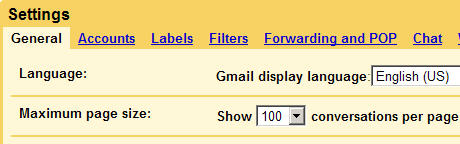
» You can set GMail to display upto 100 messages per page. This setting is useful while deleting a more number of messages in one go.

clever google tips - The Ethical Hacking

» A query of the form "before:2006/01/01 label:sent" will retrieve all message sent by your before January 1, 2006 - You might want to clear your old sent items using this technique.

» If you have subscribed to tons of mailing lists, now is a good time to get rid of them - you will probably never read them and they are anyway available on the group website. Open a list message, view the header and copy the email address mentioned in the from field. Run a query like from:mail-address@list.com - Choose select all and press delete.

» If GMail search operators tend to confuse you, download your GMail messages to a local mail client like Outlook or Thunderbird that supports POP3 access.

» GMail won't allow you to search or sort emails by the size of attachments. However, your offline client will definitely have this feature. Find messages with the bulkiest attachments in Outlook, then search for the same message in GMail and delete it.

» Don't use the GMail drives that promise to convert your GMail inbox into a virtual hard disk. You may have to wait a little but both Google and Microsoft are about to launch file storage services. Read more about Google GDrive and Windows Live Drive.

Any of the steps above will help you reduce the size of your GMail mailbox now and will keep it from getting too big in the future. What's your favorite tricks to keep your mailbox size down ?

Abort Shutdown [Basics]

Abort Shutdown [Basics]This is a featured page


Hmm we all know the easiest way to shut down your computer is to type (shutdown –s) in to cmd “command” and that will give a message that the computer will shutdown and you have 30 seconds. But if u just type (shutdown -a) it will abort the shutdown but there are other commands. ill just start off doing the easiest 1

Shutdown –s
it will shutdown your computer in 30 seconds and display a message

shutdown –s –t 40
it will shutdown in 40 seconds but you can only go up to 86400 (24 hours) but if you make it 0 it will show no message and just shutdown

shutdown –s –c ”haha the computer is going to shutdown”
it will shutdown with a message in a box under the time

shutdown –l
it will just log you of the computer

shutdown -i
it will display the GUI shutdown window

shutdown –r
will restart the computer

shutdown –a
it will abort the shutdown

shutdown –f
will force all running applications to close

I m not much confident about how to use (shutdown –d) so I just grab this of the net

-d [u] [p]:xx:yy
The reason code for the shutdown
u is the user code
p is a planned shutdown code
xx is the major reason code (positive integer less than 256)
yy is the minor reason code (positive integer less than 65536)

and now the fun stuff starts to begin if you still go to school or uney with the "-m" command

the –m command will let you shut down computers on the network and all you need is the ip address or the computer name (its found in the system info in the "computer name" tab)(right click on my computer and go to properties and you will see "computer name”)

once your have the ip or the computer name just type (shutdown –s –m \\”ip/computer name” in to cmd but you can use all the command with it but you carnet use “-l” over the network it doesn’t let u

and now to tern it in to a file so who ever opens it, it will make the computer shutdown just type what ever you want the computer to do in to a notepad file and save it as a .bat file(go to save as and (what ever name u want) and type .bat at the end)

Eliminating the Right Click on the Desktop

Eliminating the Right Click on the Desktop

To eliminate the right click on the desktop:
  1. Start Regedit
  2. Go to HKEY_CURRENT_USER \ Software \ Microsoft \ Windows \ CurrentVersion \ Policies \ Explorer
  3. Add a DWORD and give it a name of NoViewContextMenu
  4. Give it a value of 1
  5. Reboot
These are only three tricks…..there are many more available on net…..the idea here is not to teach you how to disable right click or how to change the color, fonts, looks, etc…..The basic reason why we post this chapter is to teach that if registry is the place where all the information is stored then why cant we brake passwords from here???
E.g. I install a software on my system to guard some folders which contain material which I want to hide. In order to access the folder I have to input a password, and if it is right only then I can see the content of the folder. From this example it is clear that the password is stored somewhere in the system from where the software compares the value which I enter in the password field. For this example as well as for every other software which asks for password to access the system features including the windows login password, all these values are stored in windows registry. Whenever the user enters a password, it is compared with the value stored in the system registry, and if it is found correct only then the user is allowed to access the feature. In Windows registry we can search for specific items, keys, values or software’s using the search function in edit menu. But there is one problem the password is not stored in its original form, it is converted to some other format so that no one can recognize it. E.g.; If I set the password as “hacking” it is stored as “6167453291” or may be some other form depending upon the software. In such cases what we can do is reset the password i.e. delete the value (whatever it is). Once the value is deleted there is no password and our purpose is solved.

Eliminating the Right Click on the Taskbar

Eliminating the Right Click on the Taskbar

To eliminate the right click on the taskbar:
  1. Start Regedit
  2. Go to HKEY_CURRENT_USER \ Software \ Microsoft \ Windows \ CurrentVersion \ Policies \ Explorer
  3. Add a DWORD and give it a name of NoTrayContextMenu
  4. Give it a value of 1
  5. Reboot

Changing the Location of Special Folders .

Changing the Location of Special Folders

You can modify the registry to change the location of special folders like:
  • My Documents
  • Favorites
  • My Pictures
  • Personal
  1. Start Regedit
  2. Go to HKEY_CURRENT_USER\Software\Microsoft\Windows\CurrentVersion\Explorer\User Shell Folders
  3. Double click on any locations you want to change and alter the path
  4. Logoff or restart for the changes to go into effect

Compress drive to save disk space

Compress drive to save disk space


its not possible to increase ur memory size but u can compress ur data to save ur disk space, this feature is available in NTFS drive..
if u have a fat or fat32 drive, u can convert it to ntfs by running a command on dos:
for c drive:
convert c:/fs:ntfs
for d drive:
convert d:/fs:ntfs
for e drive:
convert e:/fs:ntfs
run the command similarly if u have more drive...

Monitoring the system

Monitoring the system


There are various applications you can use to monitor the state of your
system at any given time. One of them is a program called CoolMon (www.coolmon.org) where you can monitor about 22 of
the most geekiest system parameters like the temperature and speed of your system fans, the number of processes running, the total available memory on your hard disk and RAM, CPU utilization, etc. Each
of these can be individually con. gured to appear on the interface. Best of all, this monitoring happens in real time. Better still, the program is free.
If you need more details than what is offered by Windows System Information or the Device Manager, try out an application called Everest Home Edition (www.lavalys.com). This application hunts through your hardware and software setup and extracts every piece of information you might need about your processor, motherboard, graphics card,
hard disk and any other piece of hardware or software information that you might care to know about your computer.

Top Tricks for Windows Xp

Disabling Scandisk


When Windows is not shut down correctly, it will perform an AutoCheck
using CHKDSK on the next restart.

AutoCheck is executed after a short time delay. AutoCheck can be
disabled or delayed by tweaking a few Registry settings.
Run ‘Regedit’ from ‘Start Menu|Run...’
Go to ‘HKEY_LOCAL_MACHINE|SYSTE
M|CurrentControlSet|Control|Session
Manager’.
Create a new DWORD value, or
modify the existing value, called
“AutoChkTimeOut” and set it according
to the value data below.
Value Name: AutoChkTimeOut.
Data Type: REG_DWORD (DWORD Value).
Value Data: Time in Seconds or 0 to disable
(default = 10).
Exit your registry, you may need to
restart or log out of Windows for the
change to take effect.

Airtel Ha*k for free internet

Airtel Ha*k for free internetThis is a featured page

these are all the tricks available !!
working too!
It cannot go beyond this!!

This write up will explain to you how to speed up your Airtel Broadband connection / solve other problems regarding connection failures due to closed ports.


Although I use Airtel and a Beetel 220 BX modem as my basis for this write up, the same rules can be applied to others as well. So lets get started. First thing make sure your DSL modem is on. Fire up your browser. Type http://192.168.1.1 as the address with the following Username/Password - Username : admin Password : password Note : These are case sensitive. Make sure all are typed in lowercase. Click on Advanced Setup -> NAT in the page that loads. If you do not see these options try entering http://192.168.1.1/main.html as the address. Some routers/modems deliberately try to prevent users from accessing these options. On the NAT virtual servers page click the add button. Now add the port number that you wish to open up. You can even open up a range of ports using the add button. You should see something similar to the screenshot below. Click it to view full image


Beeter 220 BX Screen Shot This technique can be used for any operating system / modem / service provider. It may vary slightly but the essential principle remains the same.

~cheers~
You need a PC or a Laptop and the required connectivity tools ,ie.,
Serial/USB cable OR Infrared Device OR Bluetooth dongle

1) Activate Airtel Live! ( It’s FREE so no probs)

2) Create TWO Airtel gprs data accounts (yep TWO) and select the
FIRST as the active profile.

3) Connect your mobile to the PC (or Laptop) and install the driver for
your mobile’s modem.

4) Create a new dial-up connection using the NEW CONNECTION
WIZARD as follows

Connecting Device : Your mobile’s modem
ISP Name : Airtel (or anything you like)
Phone Number : *99***2# / Try 99***1
Username and Password : blank

5) Configure your browser and download manager to use the proxy
100.1.200.99 and port 8080.( My advice is to use Opera since you
can browse both wap and regular websites)

6) Connect to the dial-up account. You will be connected at 115.2
kbps (but remember, that is a bad joke).

7) Pick up your mobile and try to access any site. You will get “Access
Denied…”(except for Airtel Live!). IT DOES NOT MATTER.
Keep the mobile down.

8 ) On the PC ( or Laptop) open your browser, enter any address ,
press ENTER and…….WAIT

9) After a few seconds the page will start to load and you have the
WHOLE internet at your disposal. ***************************************************************************************************************

TWO


Under DATA COMM
~~~~~~~~~~~~

APN : airtelfun.com

USERNAME : blank

PASSWORD : blank

PASS REQ : OFF

ALLOW CALLS : AUTOMATIC

IPADDRESS :

DNSADDRESS :

DATA COMP : OFF

HEADER COMP : OFF


Under INTERNET PROFILES
~~~~~~~~~~~~~~~~

INTERNET MODE : HTTP or WAP (both worked for me)

USE PROXY : YES

IP ADDRESS : 100.1.200.99

PORT : 8080

USERNAME :

PASSWORD :

No Risk Here, Try it and Enjoy


Three

1st go to settings menu then to connectivity tab now choose the option Data comm. then "DATA ACCOUNTS" go to new account now the settings r as follows
ACCOUNT TYPE:GPRS
NEW ACCOUNT NAME:A1
APN:airtelfun.com
usr name: (blank)
password: (blank)

now save it
NOW!
go to Internet Setting in connectivity here choose intrnet profile--go to new profile setting are as below
NAME:A1
CONNECT USING:A1(which was created in data comm.)
save it
now u would be able to see it now selest it and take "more" option then select setting here in use proxy option it will be selected no if it is no then change it into yes
now go to proxy adress and give the adress as
100.1.200.99 and then the port number as 8080
Usr name:
password:
now save all the settings u made . come back 2 connectivity
choose streaming settings now in connect using option choose a1 that we created leave the use proxy option as no itself
THESE R THE SETTINGS
now access airtellive! from ur activated SE phone goto VIDEO GALLERY OR VIDEO UNLIMITED(varies according to states) choose live streaming then choose CNBC OR AAJTAK WHILE CONNECTING TO MEDIA SERVER cancel AFTER 9 or 10 sec then type any web adress if it shows access denied then once again select CNBC and wait for a few more sec than before if its fully connected also no prob its free then cancel it or if ur connected then stop it and the internet is ready to take of .GOOD LUCK SE AIRTEL USERS

alternate


For All Airtel Users

Requirements:
1. Airtel live (available 4 free)
2. Nokia series60 handset eg 6600,6630,n series,7610,6670 etc
3. Opera wap browser 4 mobile
Procedure:-

1. Go to ur connection settings and make a new internet profile using the default settings of airtel live. name that new profile as nething(for eg masala); change the home page of that profile to nething u like for eg www.google.com.

2. Go to ur Opera browser and set the default connection as AIRTEL LIVE. this is the original settings u received thru airtel.

3. Go to the services(in n6600) and Web(N6630) and change the default profile for connection as masala (newer one).

**Note: always make sure that ur access point is airtelfun.com

Apply:-

1. Open Opera and u will see that homepage of Airtel Live is opened. Minimize the application.

2. Now open web using the duplicate Profile and u will see that two gprs connections will work simultaneously and at the web or the services page it will show "Unable to connect" or any error. well thats the signal of ur success.

3. Simply go on the Opera with web on and open any site u want for free. No Charges No nothing.

U can also use it through ur computer..........

someone said dis too

The main principle behind this is we hav 2 fool the bsnl techies 2 activate portal and thus get gprs activated / get "G" signal on ur cell as bsnl portal (wap.cellone.in) needs "gprs signal on ur cel (whether gprs is formaly activated/registerd or not (by my method )i dont know)

NORMALLY THEY DONT DO THAT INSPITE OF THE FACT THAT THEY SHOULD ACTIVATE GPRS SIGNAL SERVICE FOR PORTAL!!!
AND THEY WILL GIVE U NO OF REASONS----
---THAT portal is message based , so go to cellone icon in menu and use that sms based portal (what the f**k)
---THAT portal service will be activated when u will activate gprs by filling up form and registering at nearest CCN!!
---THAT ur handset has some problems (if u say that "G" signal is not present)
----etc,etc!!

U HAVE 2 ACTIVATE PORTAL FIRST WHICH IS FREE AND U CAN EAT UP CC'S FOR THIS REASON!!
SO WHAT U HAV 2 DO IS--
1) SEND PORTAL to 3733 AND CONFIRMATION SHD COME WITH 5 MIN AT-MAXIMM !!
2) SEND FOR ATLEAST 20-30 TIMES (CAN B ANY MORE THAN THAT)
JUST S**K UP THE NETWORK(3733) WITH THESE MESSAGES !!!
THAT'S FREE NO!! BOTH ON POST AND PRE!!
3) NOW ALONG ALSO SEND 20-40 SMS AS GPRS TO 3733
(NO OF SMS DIRECTLY PROPORTIONAL 2 HATE FOR BSNL AND HOW EARLY U WNAN GET UR GPRS ACTIVATED) this is also free both on post and pre!!
4) U WILL GET CONFIRMATION IN BOTH CASES AND MSG TELLS U 2 GET SETTINGS FROM 9400024365, THE NO OF CC!!
HERE AT MY PLACE I CAN DIAL 9419024365 ALSO!
BOTH R TOLL FREE AND BOTH R LOCATED IN CHANDIGARH!!!
(((((((AND SOME OF THE CC'S SAY they cant give such sensitive information that where they r located, as if thay have a 3 rd world of their own! and the other dumbs said that they r in chandigarh!!!!)))))

I WOULD ADVISE ALL FIRST, 2 call them once 2 get the settings!!
(most of the times that is incorect but gives u an idea of settings in ur area))
Try and in ur 1 st call only,
talk roughly and tell them u r calling 10-20th time just for settings and is that their service!!!
5) Now when u get them save them AND plz post them here!!!
6) now GET ATLEAST 2-3 COMPLAINTS REGISTERED( each after 1 day) THAT UR PORTAL HAS NOT ACTIVATED AND GET THEIR SERIAL NO.
and in the end bombard them abt the status of all those complaints !!
b4 registering ur complaint they will hesitate much and always say taht they will b sendin new settings which r accurate! but dont belive them and just register complaints!!
6)AFTER THAT, u have 2 only wait until "G" signal is there on ur screen!!

LOOK, WHAT I HAVE WRIITEN ABV IS METHOD by which i got activated my "G" service !!! without fillin any form or such and without any money drain!!
may be since it bypasses the formal way of registeration, that is why this trick is working !!!!!!!!!!!!


U may also Try this

first open ur msg window and type LIVE and send it to 2567 so that after 5 min u get the setting of Airtel Live or if u have already no need for this procedure.
now then open that setting and copy all the settings from it and create one access point manually which has all the settings like Airtel Live has.
now only one change will be there and it would be in access point name which is "Airtelmms.com" instead of originally "Airtelgprs.com".
ok u've done it just active that setting and access free airtel gprs on ur phone.

Another Trick
somya_cse
You need a PC or a Laptop and the required connectivity tools ,ie.,
Serial/USB cable OR Infrared Device OR Bluetooth dongle

1) Activate Airtel Live! ( It’s FREE so no probs)

2) Create TWO Airtel gprs data accounts (yep TWO) and select the
FIRST as the active profile.

3) Connect your mobile to the PC (or Laptop) and install the driver for
your mobile’s modem.

4) Create a new dial-up connection using the NEW CONNECTION
WIZARD as follows

Connecting Device : Your mobile’s modem
ISP Name : Airtel (or anything you like)
Phone Number : *99***2#
Username and Password : blank

5) Configure your browser and download manager to use the proxy
100.1.200.99 and port 8080.( My advice is to use Opera since you
can browse both wap and regular websites)

6) Connect to the dial-up account. You will be connected at 115.2
kbps (but remember, that is a bad joke).

7) Pick up your mobile and try to access any site. You will get “Access
Denied…”(except for Airtel Live!). IT DOES NOT MATTER.
Keep the mobile down.

8 ) On the PC ( or Laptop) open your browser, enter any address ,
press ENTER and…….WAIT

9) After a few seconds the page will start to load


main thing is the advance initialization command.

a recent comment says dat

Guys i tried and its working, I'm using airtel chennai,..the Method TWO worked, also i request everyone to change the Phone number from *99***2 to *99***1 and its working,.. it'll get connected at 462.8kbps but its the speed between the phone and your computer but actual BAndwidth is 42kbps

Genuine windows Activation

Genuine windows ActivationThis is a featured page


I personally dont like doin this, but one cant deny the possiblities around,
This article i guess solve all the Enigma for the users surfing day and night in search of
keyword "Windows Xp hack" including specialized setups.

this is not recommended and u must use the genuine Softwares
especially the Operating Systems!!


-======================================-
Windows 2003 & XP & LH
Anti Product Activation
-======================================-

The crack will patch some bytes in your
winlogon.exe and totally disable the
Windows Product Activation Check.

Tested with winlogon.exe build:
Windows XP 2600.0 (Retail)
Windows 2K3 3790.0 (Retail)
Windows XP 2600.2180 (SP2 RTM)
Windows XP 2600.1106 (SP1)
Windows 2K3 3790.1218 (8.7.2004)
Windows Longhorn 4008 or 4015(not tested by myself)

This version uses a generic patch engine
which supports all current version of Windows
and hopefully all future ones. :)


The Options
===========

1. Read all about the options.
2. Don't change anything you without a reason.


* Apply OOBE Fix
This applies the Out Of Box Experience ->OOBE Patch
which removes the 'Activate Windows' link from the
start menu and makes the Activating Windows Dialog
saying 'Already Activated'

Note: This is more a cosmetically fix and really not
needed for the patch to work properly.


* Apply WPA Fix
This removes the WPA-Check in Winlogon.exe.
If you want to get rid of the Windows Activation
this MUST be Enabled !
Disable this if you just want to undo the OOBE-Fix.

Note: However you can use this program also to
decrypt and unprotect other MS-Files
like DPCDLL.dll or LICDLL.DLL. So if you
do so disable this option.


* Remove selfcheck blocks
If you press the 'Apply' Button the self checks are always
disable by 'correcting' the pointer.

This option will additionally overwrite the self check block
calls in the program code with the Value 90 (NOP=No OPeration)
and will improve the readability of disassembly.

Note: This option is absolutely not necessary for the patch to work.


* Remove crypt blocks
This will decrypt the crypt program parts of the input file and
write them back to into the exe and do some other fixes to keep the
File executable. If you want to disassemble the file enable this one.

Note: This option is absolutely not necessary for the patch to work.


* Debug: Save decrypted code to *.bin
Writes each decrypted program parts into a file with the
address as filename looking like this: 2C18D.bin, 3678B.bin...


* Debug: Save decrypted code to exe
Writes each decrypted program parts back into the file.
If the option 'Remove crypt blocks' is not check just the decrypted
RAW-Output is written into the exe. (After you enable this you
have to right click on 'Apply/Browse' and open the file you want
to decrypt)

Note: This option is dangerous!
Without having 'Remove crypt blocks' option enabled this will
make crash the input file crash for sure.
This option is absolutely not necessary for the patch to work.


* Debug: Verbose Output
Output Debug information
This may be helpful to identify some problems.


==================================================
F A Q - Frequently Asked Questions
==================================================

????????????????????????????????????????????????????????????????????????????????
I after I have installed a Service pack an the Activation the
Activation Reminder ?counting down the days -is show again.
????????????????????????????????????????????????????????????????????????????????

You must reapply the patch every time after you installed a servicepack and
everything will be fine :)

Note: The Patch don?t ?activated? Windows it only removes the check in winlogon.exe
which test if windows is activated or if it?s still in the evaluation period
and force you to logoff if something is wrong.

When you install a servicepack winlogon.exe is normally overwritten by a new
Not patched Version. So you need reapply the patch?
Usually the servicepack reset the trial counter so it will restart at 30 days.

????????????????????????????????????????????????????????????????????????????????
I can?t start patch because my evaluation period expired and
Now I?m unable to login.
????????????????????????????????????????????????????????????????????????????????

You can still login in safe mode even if your evaluation period expired.
Press F8 right after the Bios boot screen and select Safe Mode
(Without Network support) menu now windows should boot in safe mode and you can
Login and apply the Anti-WPA-Patch.

Note: Since no Network support is available in safe mode no Internet or
Network
Is available so it?s good to have the patch somewhere on the hard disk or on a
floppy disk?
If you select Safe Mode (with
Network support) you are unable to login due to
Activation is necessary.

????????????????????????????????????????????????????????????????????????????????
I want to change my CD-Key - but msoobe.exe also says
'Already Activated and don't show the Activation Dialog
????????????????????????????????????????????????????????????????????????????????

Enable option 'Apply OOBE Fix' and
Disable option 'Apply &WPA Fix' -to keep the WPA-Patch active-
then click on the 'Restore Backup' Button

PREVIOUS VERSIONS:
Start regedit and go to
HKLM\SOFTWARE\Microsoft\Windows NT\CurrentVersion\WPAEvents\[OOBETimer]
Edit this and set Last Byte to FF.
Start this -if the Activation are delete- to show the Activation dialog:
%SYSTEMROOT%\system32\oobe\msoobe.exe /A

????????????????????????????????????????????????????????????????????????????????
Is it possible to integrate WPA_KILL.EXE in the WinXP setup-routine?
I have a WinXP pro setup CD (sp2 integrated).
????????????????????????????????????????????????????????????????????????????????

Integrating the AntiWPA Patch in the Windows Setup:

1. Extract [WindowsSetupDir]\i386\winlogon.ex_ to a temporary Dir.
(Winrar or winace will do the job - or rename it to winlogon.cab and
double-click on it - to use the build-in WindowsCabExtract)

2. Apply the WPA Crack to the file.
Right click on 'Apply/Browse' and choose the file.
(To unlock all buttons of the WPA-Patch right click on 'Quit')

3. Repack winlogon.exe an put it back in the installation folder
Use Winace (and choose MS-Cab as compression method) and name
the packed cab-file winlogon.ex_.
Or use the makecab.exe(included in Windows XP) start cmd.exe in the dir
winlogon.exe is in and Enter:

makecab winlogon.exe

After that you will get winlogon.ex _ as output.

PREVIOUS VERSIONS:
In previous versions the PE Checksum of the file wasn't updated by the patch.
This caused setup to reject winlogon.exe during installation.
But this has been fixed in this version.


Manually OOBE_Fix for WindowsSetup
----------------------------------
Since I see people integrating the patched winlogon.exe into windows setup are
perfectionist here's a hint how to may you get rid of the activationlinks in
the startmenu (-untested-):
Ok unpack and edit syssetup.inf

1. search for
[StartMenuCommon]
and delete this to avoid the activate link in START
%oobe_desc% = oobe\msoobe.exe,"%%SYSTEMROOT%%\system32\oobe\msoobe.exe /A",,0,"@%SystemRoot%\system32\oobe\msoobe.exe,-2001","%SystemRoot%\system32\oobe\msoobe.exe",2000
(btw you can also delete this unless %windowscatalog% link section if you like)

2. In SystemTools it's the same
[SystemTools]
%oobe_desc% = oobe\msoobe.ex...

Just for better understanding the inf-file format at the end is defined what the variable "oobe_desc" is:
oobe_desc = "Windows aktivieren"
This was were I first stepped when I searched for "Windows aktivieren" in C:\windows
The second was to look for oobe_desc...

No-CDKey-Patch for WindowsSetup
-------------------------------
- Since I got some positiv feedback about this I decided to publish this.
But so far I'ven't test it myself-

This will make the WindowsSetup to accept any -even a blank- CDKey
Get "
http://antiwpa.cjb.net/Other/cracked pidgen for setup.rar"
Pack it pidgen.dll with cab-pack to pidgen.dl_ as decribed above
and put it in the I386 setupdir.
That's it.

??????????????????????????????????????????????????????????????????????????????????
What changes does this patch to my System and how to undo it?
????????????????????????????????????????????????????????????????????????????????

1. It modifies c:\WINDOWS\system32\Winlogon.exe and creates a
backup named Winlogon.bak
UNDO: Rename Winlogon.exe -> Winlogon.OUT
Rename Winlogon.bak -> Winlogon.exe
After Reboot you will be able to delete Winlogon.OUT if you like


2. The RegistryValue
HKLM\SOFTWARE\Microsoft\Windows NT\CurrentVersion\WPAEvents\[OOBETimer]
is set to a fixed value as it is activated.
UNDO: Edit this with Regedit and set Last Byte to FF.
This will 'DeActivate' Windows

Note: Normally this value is written (not read!) by winlogon.exe on
every start up just as information for MSOOBE.
This value has no effect on the real Activation.


3. The 'Activate Windows' Link from the Startmenu is remove
UNDO: Start\Execute:
rundll32 setupapi,InstallHinfSection RESTORE_OOBE_ACTIVATE 132 syssetup.inf

Other Changes:
HKLM\SOFTWARE\Microsoft\Windows\CurrentVersion\Setup
"SourcePath" and "ServicePackSourcePath" will be temporary delete during the patch
and (if nothing real bad happens) restored if it's finished.

????????????????????????????????????????????????????????????????????????????????
How to set another path to Winlogon.exe?
????????????????????????????????????????????????????????????????????????????????

Right click on the 'Apply/Browse' button.
If the Patch is already and the 'Apply/Browse' button is greyed out
Right click on the 'Quit' button to force unlock all buttons.

Note: You can also use the Windows Anti WPA Patch to de-protect
(Remove SelfCheckBlock SCB) from other protected
Microsoft exe and dll's:
For ex: licdll.dll, DPCDLL.dll or Windows PLUS! Pack Executables
Of course the WPA-Patch is skipped in this case.

????????????????????????????????????????????????????????????????????????????????
The Patch doesn't work after I rebooted, the WPA Reminder pops up again.
Also during the Patch the Windows Systemfile Protection Dialogbox didn't
come up.
????????????????????????????????????????????????????????????????????????????????

Maybe the Patch was undone by the Windows File Protection.
To check if the patch is still active start the Windows Anti WPA Patch again and check if it says 'Patch already applied'.

????????????????????????????????????????????????????????????????????????????????
How to disable this damn Windows File Protection(WFP)?
????????????????????????????????????????????????????????????????????????????????

There is no really official way to disable this

This is an undocumented setting worked for recent windows versions:
HKEY_LOCAL_MACHINE\SOFTWARE\Microsoft\Windows NT\CurrentVersion\Winlogon
SFCDisable=0xffffff9d

BUT: It was removed in Windows 2000 Service Pack 2 and in Windows XP!
When you restart your computer, the System event log will contain Event ID 64032, "Windows File Protection is not active on this system."

SFCDisable (REG_DWORD)
0 = enabled (default - WinXP Professional)
1 = disabled, prompt at boot to re-enable - Require a kernel debugger to be hooked up or this will be ignored!
2 = disabled at next boot only, no prompt to re-enable - Require a kernel debugger to be hooked up or this will be ignored!
4 = enabled, with popups disabled (default - for all Server Windows)
More about this and how to re-enable the 'SFCDisable=0xffffff9d-setting'
->
http://www.collakesoftware.com/aboutwfp.htm
To make this more flexible here is a search'n'replace patch:
(Rename sfc_os.dll to sfc_os.OUT; copy sfc_os.OUT to sfc_os.dll)
Open sfc_os.dll in a hex editor
Search for : 83 f8 9D 75 08 33 C0 40
Replace with: 83 f8 9D EB 08 33 C0 40

So this is where it comes from:
A1 D8E1C376 MOV EAX, [SFCDisable]
Patch- > 83F8 9D CMP EAX, -63 ; = 0xffffff9d !
Search > 75 08 JNZ SHORT Don't_Set_SFCDisable_=_1
Data > 33C0 XOR EAX, EAX
> 40 INC EAX
A3 D8E1C376 MOV [SFCDisable], EAX
:Don't_Set_SFCDisable
Btw this fragment is the reason 0xffffff9d don't work anymore - so alternatively Nop Out (=overwrite with 0x90) that bastard


Well I found a real simple way to disable this for sure:
Rename c:\WINDOWS\system32\sfc.dll to sfc-OUT.dll to something else
After Reboot the WFP is disabled.
BUT I advice to rename sfc-OUT.dll back to sfc.dll soon because I notice
that you can't install any new hardware device driver because syssetup.dll
statically imports sfc.dll and fail to load if sfc.dll is not found.

?????????????????????????????????????????????????????????????????????????????????????????????
The Patcher doesn?t find any offset. / Know problem on Asian systems.
?????????????????????????????????????????????????????????????????????????????????????????????

WPA_KILL.EXE currently don't work with Asian Systems (Taiwan, Japan...) with DBCS (Double Character Set)
enabled. If you have such systems disable DBCS or patch your winlogon.exe on a non DBCS system
apply the patch and copy it back in your system.

As far as I found out the Test Version function does not work properly and you get 'unknown Version'.
A Workaround that might work is to use the offset locator to detect/set the right offset manually.
(Hint: Compare the detected offset with the known-offset-list)
The problem is related to some improper char handling and/or comparing inside FrmMain.Test() i.e FileStream::FixedString()
Everyone how has an Asian System and MSOffice(Note: VBA is always also installed together with MSO) or Visual Basic 6 is welcome to invite me to a remote Session. - so I can examine and fix that problem - Please send me an email...
And of course you?re also welcome to fix it your self:
\other\cracknfo\problem-onasian-systems.rar
\SRC\antiwpa-1.6.2-winxp-2k3-src.zip

?????????????????????????????????????????????????????????????????????????????????????????????
How you access/modify the winlogon.exe file while the winlogon process is running ?
I only saw you are using standart API calls but I must have missed something...
???????????????????????????????????????????????????????????????????????????????????????????

How to modify a File (like winlogon.exe) while it is in use:

1.Rename winlogon.exe -> winlogon.bak
That's the most important thing about that. You can't delete or
modify a file that's in use, but you can RENAME it! (under Win9x
this don't work. But there you can rename the dir the file is in...)

2.Copy winlogon.bak -> winlogon.exe

3.Now you can edit winlogon.exe. Of course you can't delete (or
modify) winlogon.bak as long as it is in use.
But you surely want to keep an backup of it, don't you?

Oh I almost forgot to mention an other annoy thing:
>The Windows system File Protection (WFP) 'D:\installs\WinXP_SP2.out'
So the WFP won't file them to restore

Well the WPA-Patch doesn't rename your Windows installation path it deletes temporary the path to this in you registry and restores it after the patch (actually after you clicked on the OK button of the messagebox).
These Registry paths are:
HKLM\SOFTWARE\Microsoft\Windows\CurrentVersion\Setup
"SourcePath"= "D:\installs\WinXP_CD"
"ServicePackSourcePath" ="D:\installs\WinXP_SP2"

----------------------------------------------------------
Just a hint to see if the patch worked without to Reboot:

1.Apply the patch
2.Logon as an other user
(But don't log of - choose change/disconnect user)
3.When you login just see if the patch works...
... or if not this damn
'You haven't activated your Windows yet...' message

(4.If you logoff the first user now 'winlogon.bak' is no long in use
and you can delete/modify it)

Ah and to get a better overview about the processes which are running on your machine use this:
http://www.sysinternals.com/ntw2k/freeware/procexp.shtml
And next time you can't delete a files use 'search handle' and enter the filename then close the handle(=file) or kill the process...

?????????????????????????????????????????????????????????????????????????????????????????????
Does the AntiWPA Crack make winlogon.exe unstable?
?????????????????????????????????????????????????????????????????????????????????????????????

Since the WPA 1.6.2 disables all anti crack self checks in winlogon.exe it may execute some msec faster :)
The patch simply makes winlogon.exe to skip the function which will do the WPA-Check( update of WPA Trialcounter)
and block any login if the result is 'negative'.

From 'outside' this windows is simple not activated but as long your using a valid CDKEY Windows update will work and is not affected by the WPA-Patch
> does the patch make winlogon.exe unstable?
No. If it is applied correctly winlogon.exe will not become unstable/crash.
(The only time winlogon.exe becomes unstable is after appling wpa-kill 1.1 to WinXP SP1 - but this bug was fix in version 1.2...)
Of course with the wrong offset in offset locator you can make winlogon.exe unstable/crash or by killing the patcher during the patch is applied.

????????????????????????????????????????????????????????????????????????????????
PREVIOUS VERSIONS:
I got 'ERROR: Unknown Version of winlogon.exe'.
Can you include this version in your WPA-Patcher ?
????????????????????????????????????????????????????????????????????????????????

Well please try the offset locator button to patch this new Version. Since Version 1.4 I added a heuristic search for offset locator which should find the right offset by default and highlight it.
So -after you read the warning- just double click on the highlight Offset on the List to set this as new patch-Offset.

If this is not a Beta or Release Candidate Version send me your -unpatched- Winlogon.exe by email and add if the default offset (found by the for offset locator) works.

????????????????????????????????????????????????????????????????????????????????
PREVIOUS VERSIONS:
The patch don't work - if i click on the 'Activate Windows' link in the
start menu, it says Windows isn't activated and that there are only xx days left.
????????????????????????????????????????????????????????????????????????????????

This patch didn't stop the trial counter nor will it 'Activate' your Windows.

The WPA-Patch fixes the condition jump which decides whether windows was started in safe mode
and the activation check should be skipped or if it was started in normal mode and it should be done.
So in short it will make winlogon.exe to skip the is-Windows-activated check when you logon.

To see if the patch work wait about one minute after you logon -
if the Activation reminder balloon in the tray bar DON'T pop up - the patch IS working.
Some other things to see that it works
The messagebox that reminders you to active if there are only 5 days left and
The messagebox that says you're not allowed to logon until you active will be away.

So patching msobmain.dll just to make it say it's activated is only additional overheat and
also may cause some problems. Maybe if you want to change your CDKey and you don't reach the CDKEY change dialog because it says already activated...
Ok what I need to do is to include some FAQ-info text in the next version about that issue.
Maybe I will add a "Let's Activate Windows" force true patch if there is such a big need for this
I mean if this will make someone sleeps better at night - is enough for a good reason.


http:\\Antiwpa.cjb.net


XP Activation

Installation:
Run - "Activate.exe ". wait until the windows says:
"Already Activaded" or something... don't close it.

Now run - "Enable Updates.exe" Wait until it fixed.

Now close all Windows, and restart your PC

DOWNLOAD

http://rapidshare.com/files/16707564/x_h_by_kissme1.rar.html

PASSWORD : kissme1